


SMS Terms & Conditions
SMS Terms and Conditions
Last updated October 1, 2026.
For information about how we handle your mobile phone number and messaging consent data, please see the SMS section of our Privacy Policy.
- When opting in to Stern's SMS Notifications program, you agree to receive text message updates regarding your relationship with us. These messages may include order confirmation, estimated delivery times, delivery confirmations, delays, scheduled service reminders, safety alerts, and other important account-related information.
- Participation in SMS notifications is voluntary and not required to use our services. Message frequency varies based on order activity. Standard message and data rates may apply depending on your mobile carrier and service plan.
- Carriers are not liable for delayed or undelivered messages. If you are experiencing issues with the messaging program, you can reply with the keyword HELP for assistance, or you can get help by contacting us directly: Stern Company | Contact | Stern.co.
-
To opt-in, access Stern's customer portal using one of the methods listed below. Note that the email address used to create an account must be in your Stern customer contact details on file.
- There is a hyperlink here and one labelled 'My Account' in the top, right corner of the stern.co web site, which will take you to the browser version of this application.
- Download and install the Stern Oil Co mobile application, available from Google Play and the Apple Store.
Please contact our Customer Service team at [email protected] or give us a call at 605.925.7999 to update your contact details. We are happy to assist you! Once signed into your Stern Oil Co customer portal, please follow the steps provided in the next section 'How the opt-in works.'
- You may opt-out at any time by clearing the option to receive texts in your Stern Oil Co customer portal, which we'll cover in the next section 'How the opt-in works,' or by replying STOP to any text message you receive from us.
How the opt-in works
The following steps will guide you through the process of opting in to receive SMS text messages from Stern Oil Co about orders you place with us.
-
Open a web browser on your device and type in the address stern.co then click on the MY ACCOUNT button at the top right of the web page, Figure 1, or via the Stern Oil Co mobile app available via Google Play and the Apple Store, Figure 2.
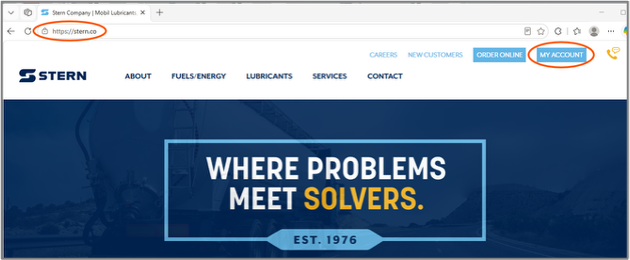
Figure 1 — Stern Oil Co customer portal web application login screen. 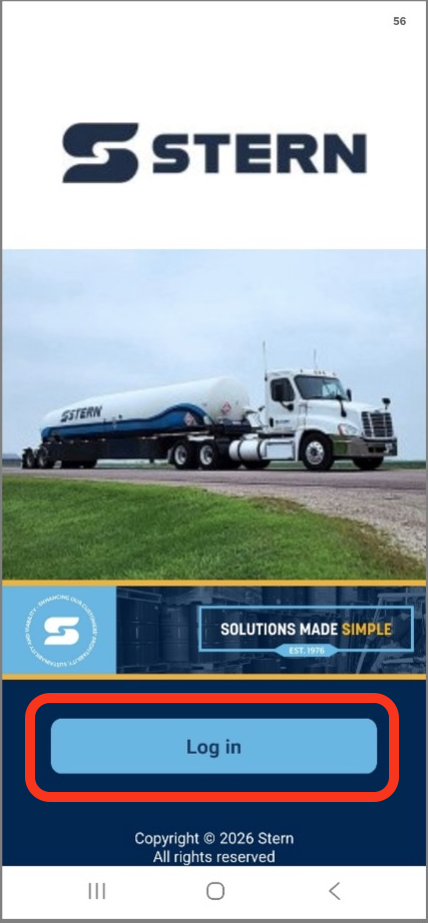
Figure 2 — Stern Oil Co customer portal mobile application login screen. -
Once signed into your account, click on the person icon in the upper right corner then select 'Edit Profile' as displayed in Figure 3.
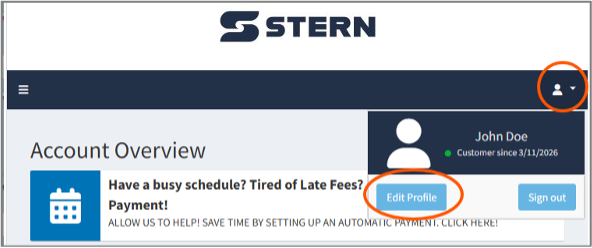
Figure 3 — Stern Oil Co application 'Edit Profile.' -
On the next screen, see Figure 4, select 'Contact Information.'
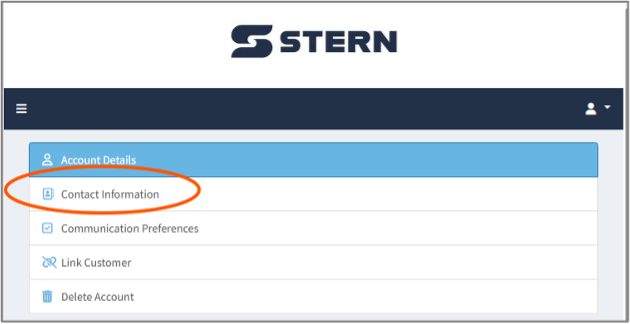
Figure 4 — Stern Oil Co application 'Contact Information.' -
At the bottom of the contact information displayed in Figure 5, you may add a new phone number or edit an existing phone number associated with your account. By default, the option to receive SMS text notifications is disabled, as indicated by the red 'x' to the right of 'Receives Texts.'
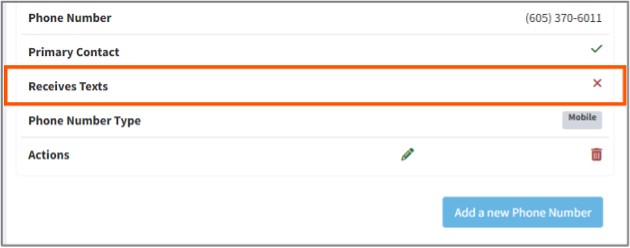
Figure 5 — Stern Oil Co application SMS 'Receive Texts' defaults to off, not selected. -
If you would like to receive SMS text messages about your transactions with us, click on the pencil icon, circled in Figure 6, to edit an existing phone number in your account. Alternatively, you can choose to 'Add a new Phone Number' and follow this process to opt-in to receiving SMS text messages on a new phone number.
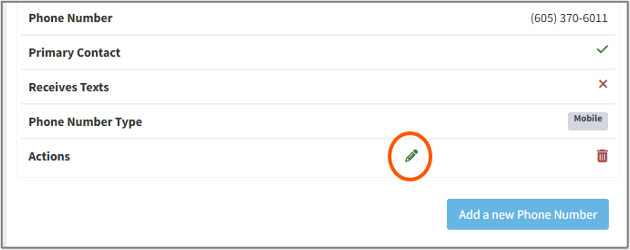
Figure 6 — Select the pencil icon to edit an existing contact phone number on your account. -
Figure 7 shows the 'Receives Texts?' checkbox cleared by default, meaning SMS text messaging is disabled. Figure 8 shows the checkbox selected to opt-in to SMS text messages. After making your selection, click 'Save Phone Number' to save your changes.
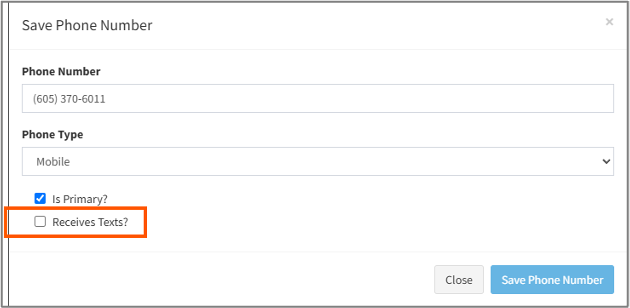
Figure 7 — Opt-out of receiving SMS text messages by leaving the check box blank. 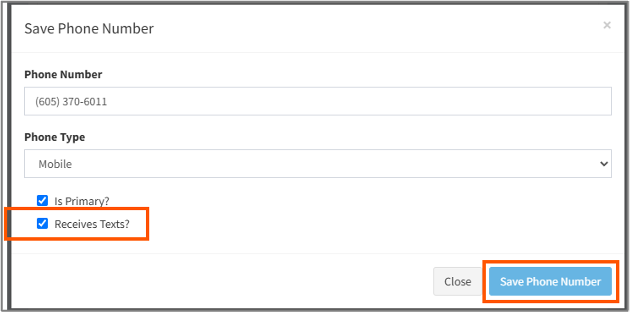
Figure 8 — Opt-in to receiving SMS text messages by adding a checkmark in the box for 'Receives Texts?' - In the event that you want to discontinue receiving SMS text messages from Stern Oil Co, you may follow the process in the previous steps to clear the 'Receives Texts?' checkbox or by replying STOP to the text message you receive from us.
Who is sending these messages
Text messages in this program are sent by Stern Oil Company, Inc. (doing business as "Stern"). We do not send messages on behalf of any other company.
Stern Oil Company, Inc.
27923 US Highway 81
PO Box 218
Freeman, SD 57029
United States
[email protected]
605.925.7999